<?xml version="1.0" encoding="UTF-8"?>

<upm-export>
	<title>Il Processo Telematico - La Privacy - La Sicurezza Informatica</title>
	<link>https://maurizioreale.it</link>
	<description>a cura dell&#039;Avv. Maurizio Reale (cultore della materia &#34;Informatica Giuridica&#34; presso l&#039;Università Statale di Milano)</description>
	<pubDate>Sat Apr 18 23:02:29 2026 / +0000  GMT</pubDate>
	<generator>Universal Post Manager 1.1.2 [ www.ProfProjects.com ] </generator>
	<language></language>
	
			<item>
			<title>Estrarre il duplicato informatico, dal Portale dei Servizi Telematici, ai fini della notifica PEC o del deposito telematico</title>
			<link>http://maurizioreale.it/?page_id=1956</link>
			<pubDate>Sat Apr 18 23:02:29 2026 / +0000  GMT</pubDate>
			<guid isPermaLink="false">http://maurizioreale.it/?page_id=1956</guid>
			<content-encoded><![CDATA[<h2 style="text-align: center;"><img class="wp-image-1978 aligncenter" src="http://maurizioreale.it/wp-content/uploads/2016/02/COME-FARE.png" alt="COME FARE" width="443" height="322" /></h2>
<h2 style="text-align: center;"><span style="color: #0000ff;"><strong>Estrarre il duplicato informatico,</strong></span></h2>
<h2 style="text-align: center;"><span style="color: #0000ff;"><strong>dal Portale dei Servizi Telematici,</strong></span></h2>
<h2 style="text-align: center;"><span style="color: #0000ff;"><strong>ai fini della notifica PEC o del deposito telematico</strong></span></h2>
&nbsp;
<h3 style="text-align: justify;"><span style="color: #000000;"><strong>Estrarre il <span style="color: #0000ff;">DUPLICATO INFORMATICO</span> dal fascicolo informatico è utile sia per la notifica tramite PEC sia per il deposito telematico<span class="text_exposed_show"> in quanto si notificano o depositano senza la necessità di attestarne la conformità. Sono però file che, quando visualizzati sul computer, <span style="color: #0000ff;">NON PRESENTANO ALCUNA “COCCARDINA”</span> proprio perché originali informatici.</span></strong></span></h3>
<h3 style="text-align: justify;"><span style="color: #0000ff;"><strong>Vediamo quindi come procedere per estrarre dal fascicolo informatico il duplicato informatico dell'atto o del provvedimento.</strong></span></h3>
<h3 style="text-align: justify;"><strong><span style="color: #ff0000;">1)</span> creiamo<span style="color: #000000;"> nel PC una cartella nella quale poi salveremo il duplicato informatico estratto dal fascicolo informatico;</span></strong></h3>
<h3 style="text-align: justify;"><strong><span style="color: #ff0000;">2)</span> <span style="color: #000000;">inserito nel PC il dispositivo di firma digitale, utilizziamo per accedere al PST, il browser contenuto all'interno del nostro dispositivo;</span></strong></h3>
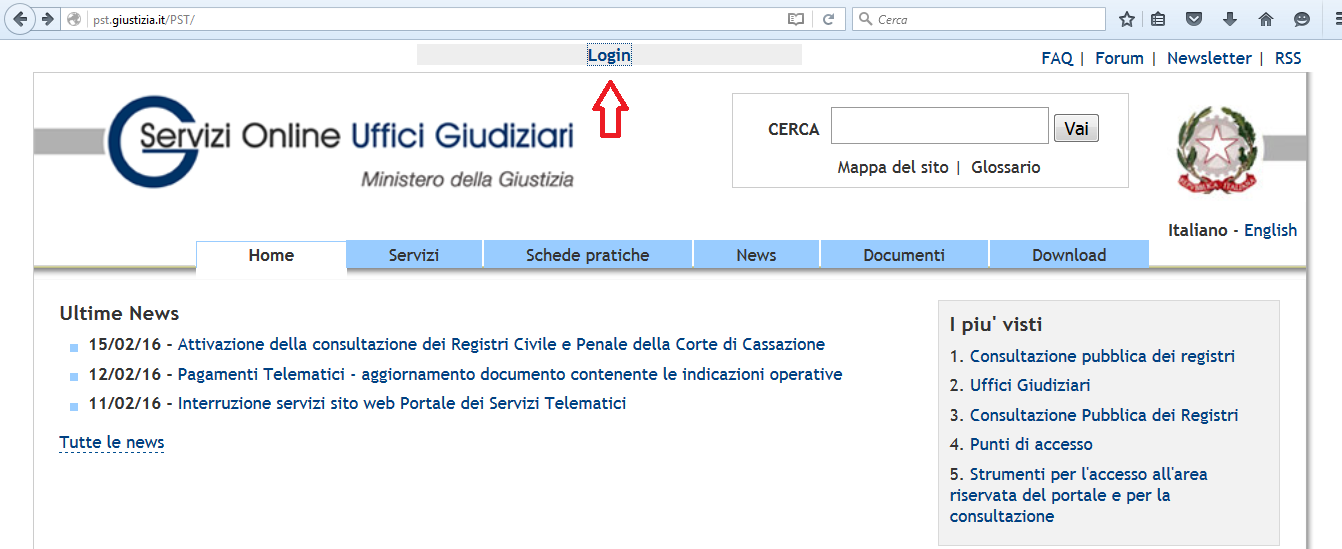
<h3 style="text-align: justify;"><strong><span style="color: #ff0000;">3)</span> <span style="color: #000000;">entriamo nel sito PST:</span> <span style="color: #0000ff;"><a style="color: #0000ff;" href="http://pst.giustizia.it/PST/">http://pst.giustizia.it/PST/</a></span> <span style="color: #000000;">e clicchiamo su <span style="color: #0000ff;">“LOGIN”</span></span></strong></h3>
<img class="size-full wp-image-1957 aligncenter" src="http://maurizioreale.it/wp-content/uploads/2016/02/001-1.png" alt="001" width="1342" height="549" />
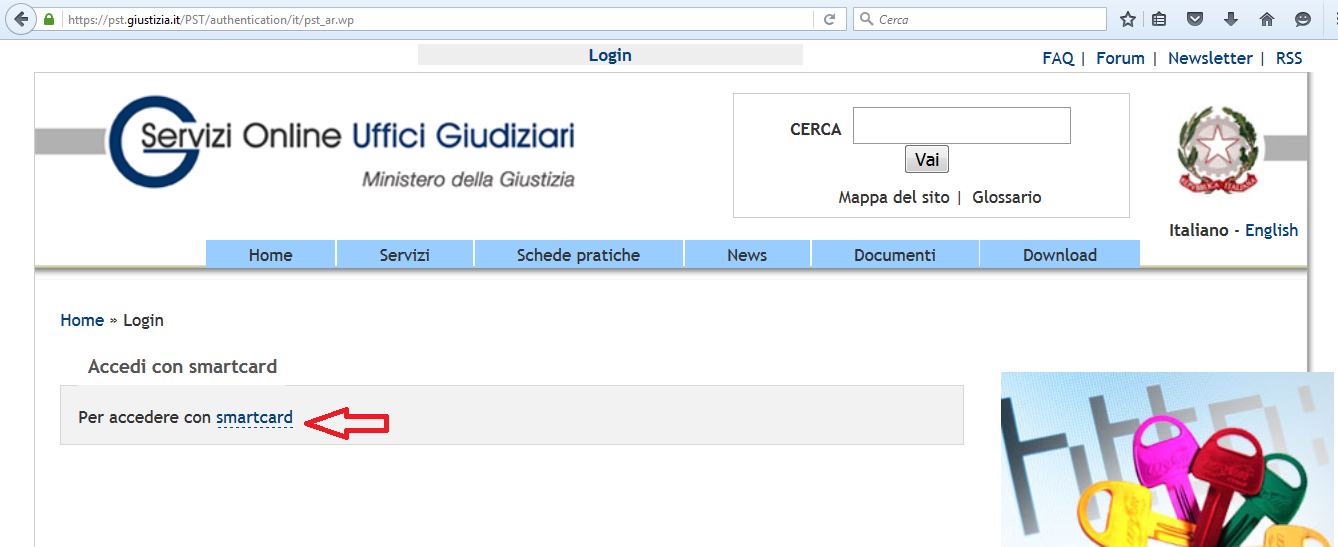
<h3 style="text-align: justify;"><strong><span style="color: #ff0000;">4)</span> <span style="color: #000000;">Clicchiamo su</span> <span style="color: #0000ff;">“ACCEDI CON SMARTCARD”</span></strong></h3>
<img class="size-full wp-image-1958 aligncenter" src="http://maurizioreale.it/wp-content/uploads/2016/02/002-1.png" alt="002" width="1338" height="547" />
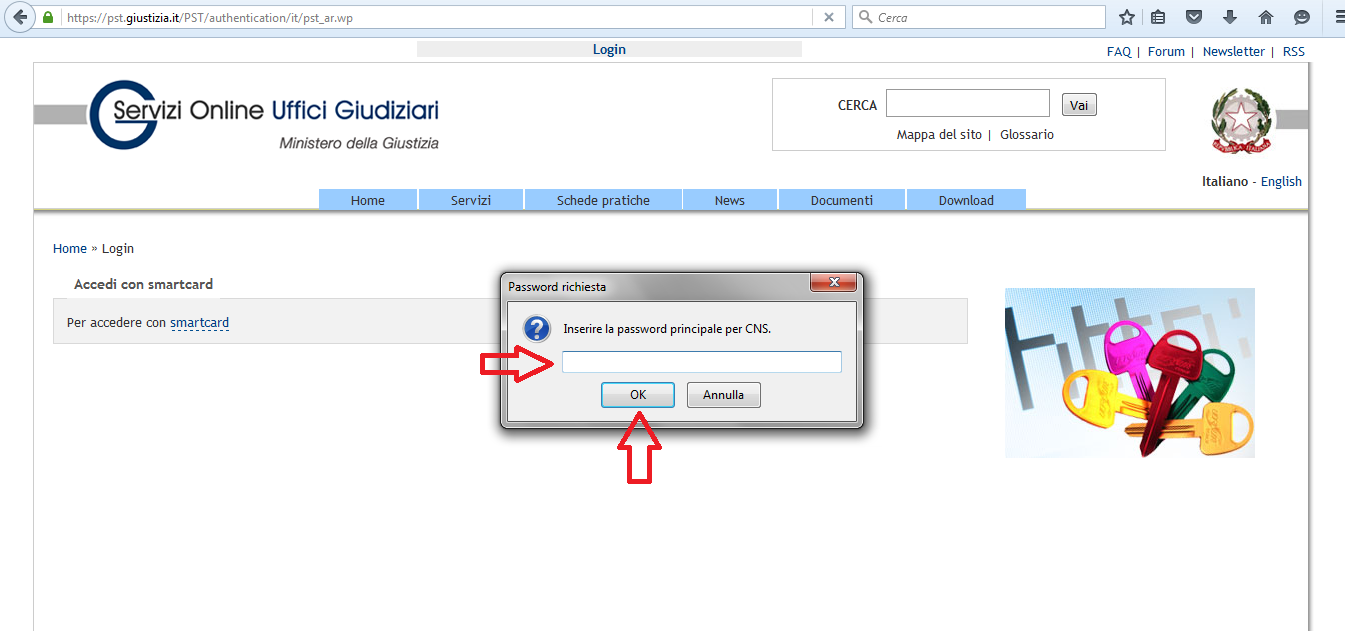
<h3 style="text-align: justify;"><span style="color: #000000;"><strong><span style="color: #ff0000;">5)</span> Inseriamo il PIN per l'autenticazione e poi clicchiamo su <span style="color: #0000ff;">“OK“</span></strong></span></h3>
<img class="size-full wp-image-1959 aligncenter" src="http://maurizioreale.it/wp-content/uploads/2016/02/002bis-1.png" alt="002bis" width="1345" height="631" />
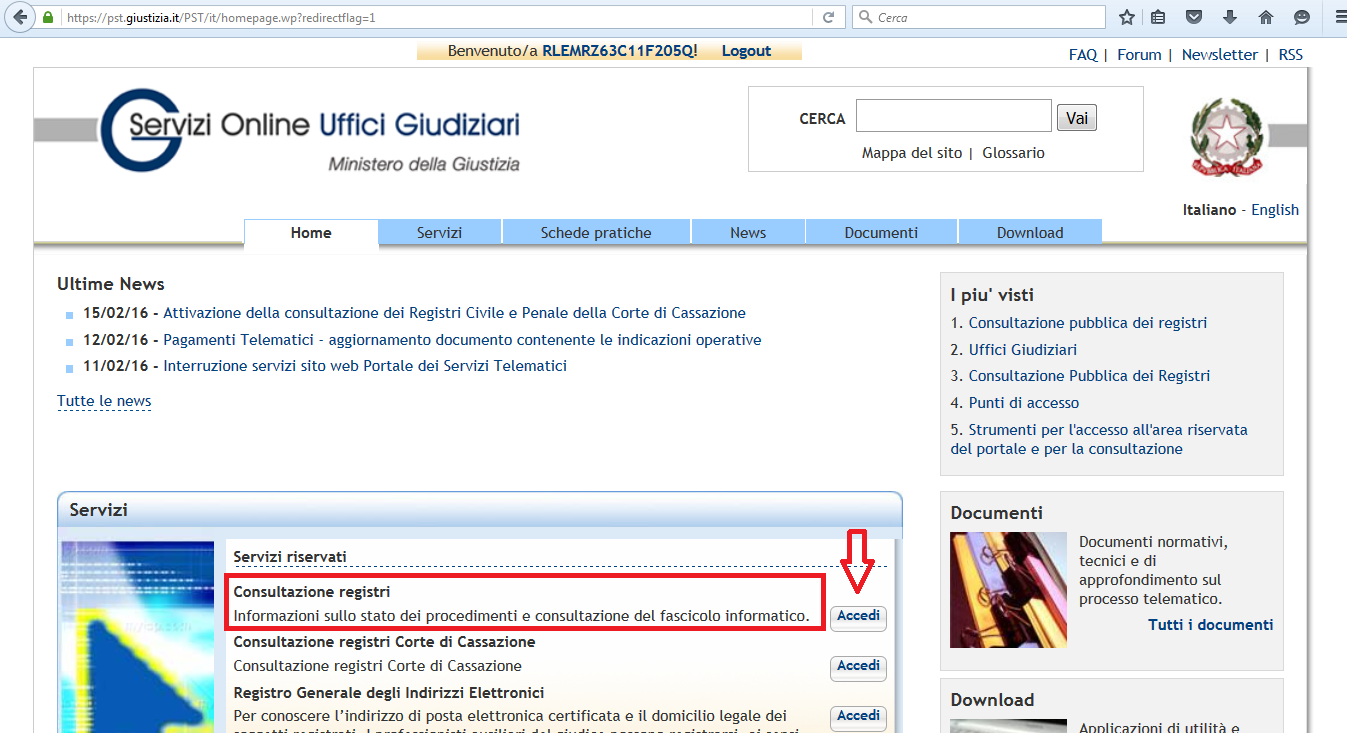
<h3 style="text-align: justify;"><span style="color: #000000;"><strong><span style="color: #ff0000;">6)</span> Automaticamente torneremo al menù principale; da qui clicchiamo sull'icona <span style="color: #0000ff;">“ACCEDI”</span> posizionata a fianco di <span style="color: #0000ff;">“Consultazione registri“</span></strong></span></h3>
<img class="size-full wp-image-1960 aligncenter" src="http://maurizioreale.it/wp-content/uploads/2016/02/003-1.png" alt="003" width="1347" height="733" />
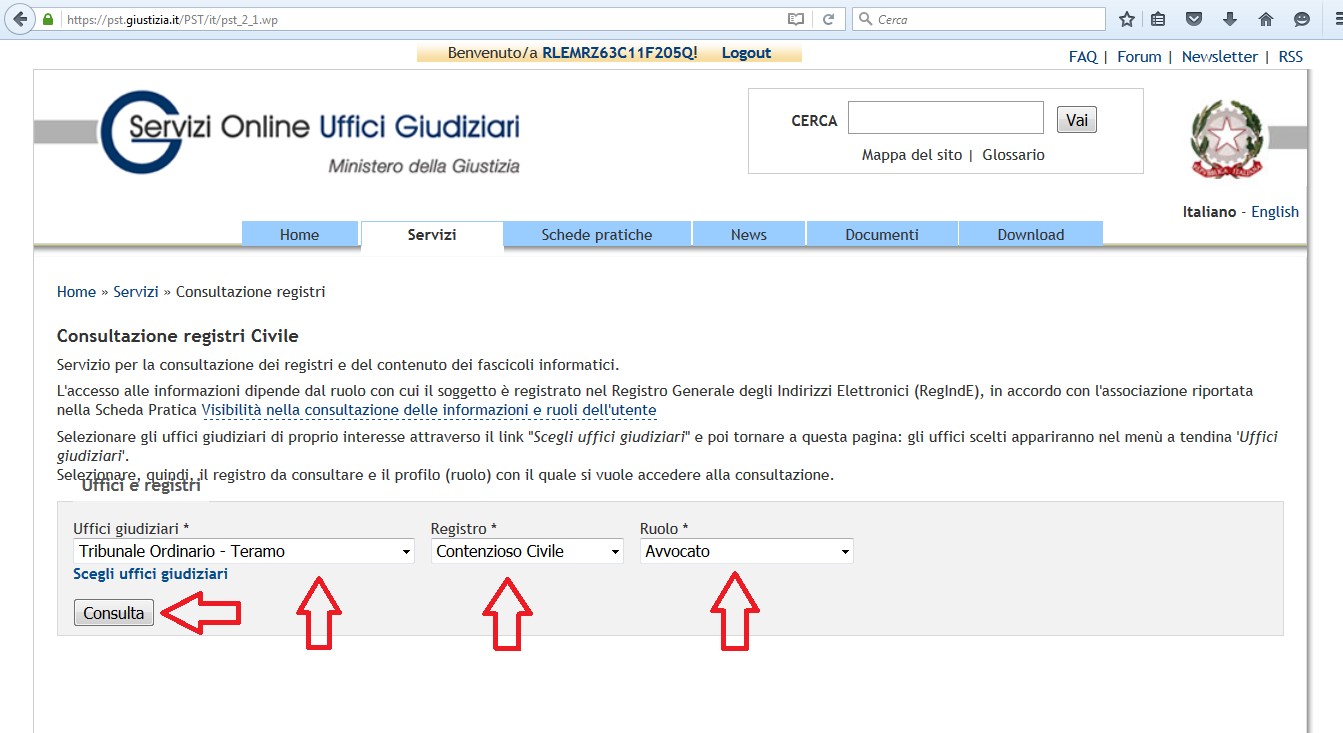
<h3 style="text-align: justify;"><span style="color: #000000;"><strong><span style="color: #ff0000;">7)</span> Selezioniamo dal menù a tendina l'<span style="color: #0000ff;">Ufficio Giudiziario</span>, il <span style="color: #0000ff;">Registro</span> e il <span style="color: #0000ff;">Ruolo</span> di nostro interesse e poi clicchiamo su <span style="color: #0000ff;">“consulta”</span></strong></span></h3>
<img class="size-full wp-image-1961 aligncenter" src="http://maurizioreale.it/wp-content/uploads/2016/02/004-1.png" alt="004" width="1343" height="733" />
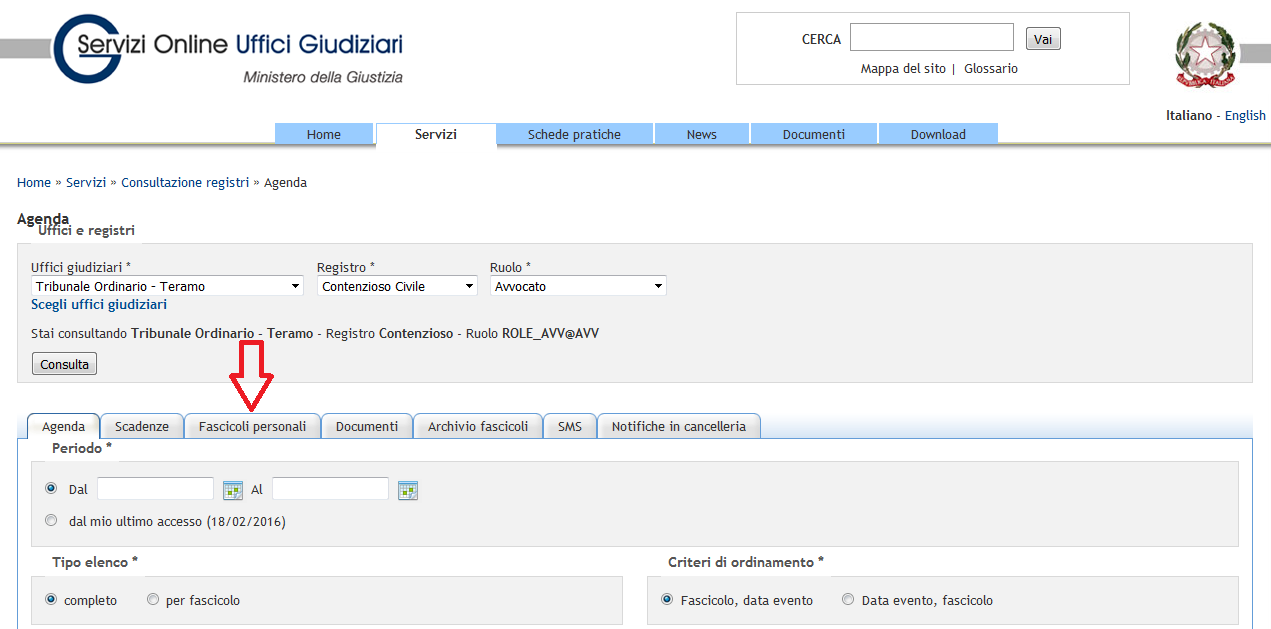
<h3 style="text-align: justify;"><span style="color: #000000;"><strong><span style="color: #ff0000;">8)</span> Nella schermata che si aprirà, clicchiamo su <span style="color: #0000ff;">“Fascicoli personali”</span></strong></span></h3>
<img class="size-full wp-image-1962 aligncenter" src="http://maurizioreale.it/wp-content/uploads/2016/02/006-1.png" alt="006" width="1271" height="629" />
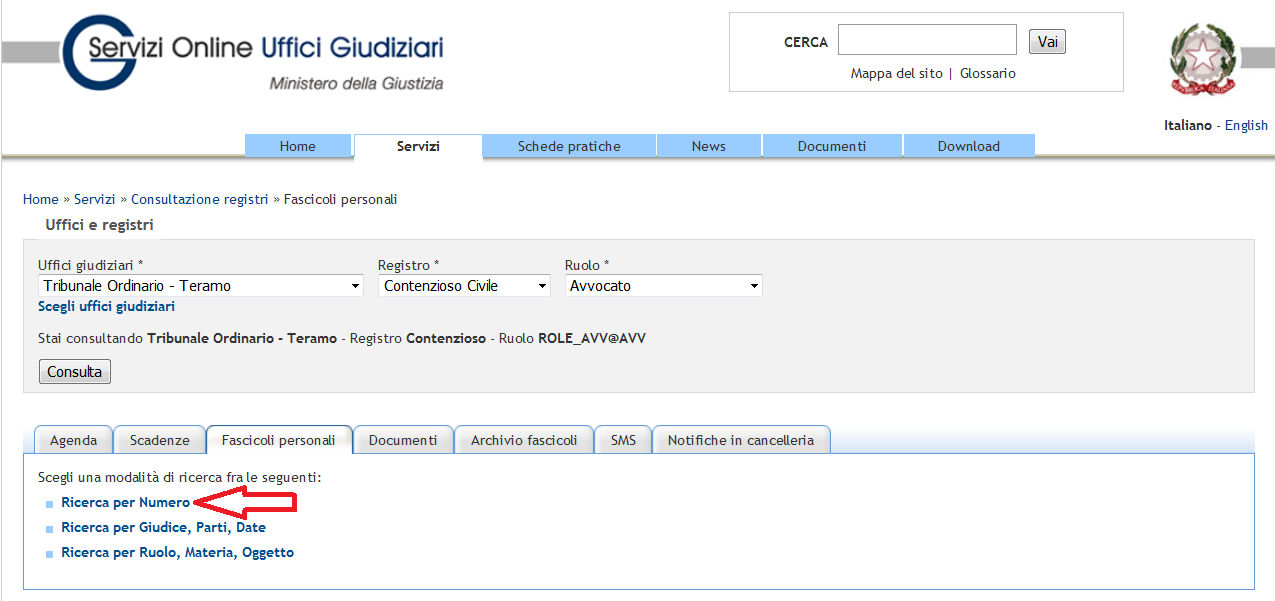
<h3 style="text-align: justify;"><span style="color: #000000;"><strong><span style="color: #ff0000;">9)</span> Nella schermata che si aprirà cliccando su <span style="color: #0000ff;">"Ricerca per numero"</span> potremo individuare, inserendo il <span style="color: #0000ff;">numero di ruolo</span> e l'<span style="color: #0000ff;">anno</span> del procedimento, il fascicolo dal quale vogliamo estrarre il duplicato informatico dell'atto e/o provvedimento</strong></span></h3>
<img class="size-full wp-image-1963 aligncenter" src="http://maurizioreale.it/wp-content/uploads/2016/02/007-1.png" alt="007" width="1275" height="601" />
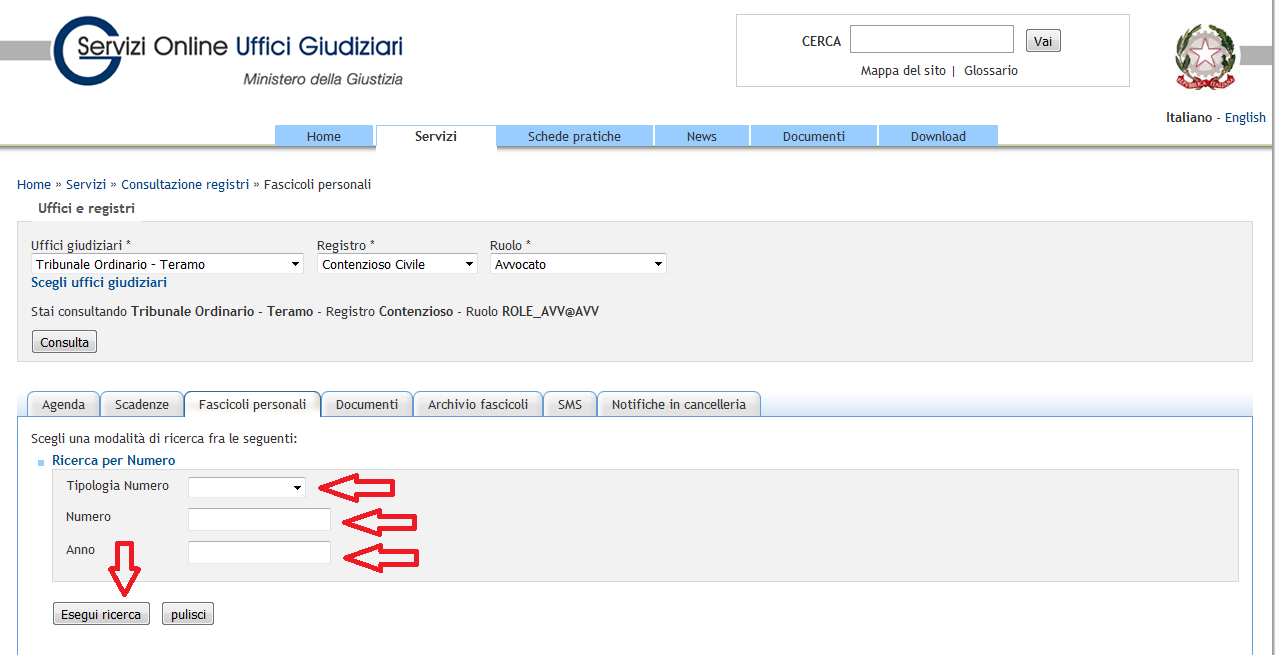
<h3 style="text-align: justify;"><span style="color: #000000;"><strong><span style="color: #ff0000;">10)</span> Inseriti i dati richiesti, clicchiamo su <span style="color: #0000ff;">"Esegui ricerca"</span></strong></span></h3>
<img class="size-full wp-image-1964 aligncenter" src="http://maurizioreale.it/wp-content/uploads/2016/02/008-1.png" alt="008" width="1275" height="655" />
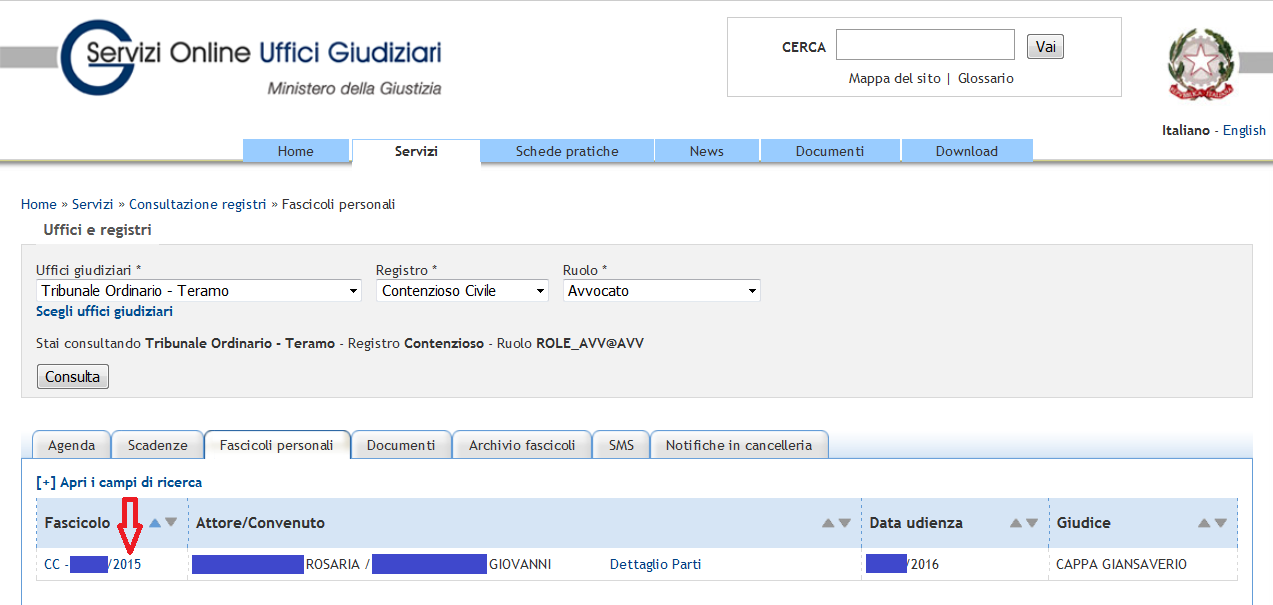
<h3 style="text-align: justify;"><span style="color: #000000;"><strong><span style="color: #ff0000;">11)</span> <span style="color: #000000;">Nella schermata che si aprirà visualizzeremo il fascicolo ricercato; clicchiamo, quindi, sul relativo numero di ruolo </span></strong></span></h3>
<img class="size-full wp-image-1965 aligncenter" src="http://maurizioreale.it/wp-content/uploads/2016/02/009.png" alt="009" width="1273" height="605" />
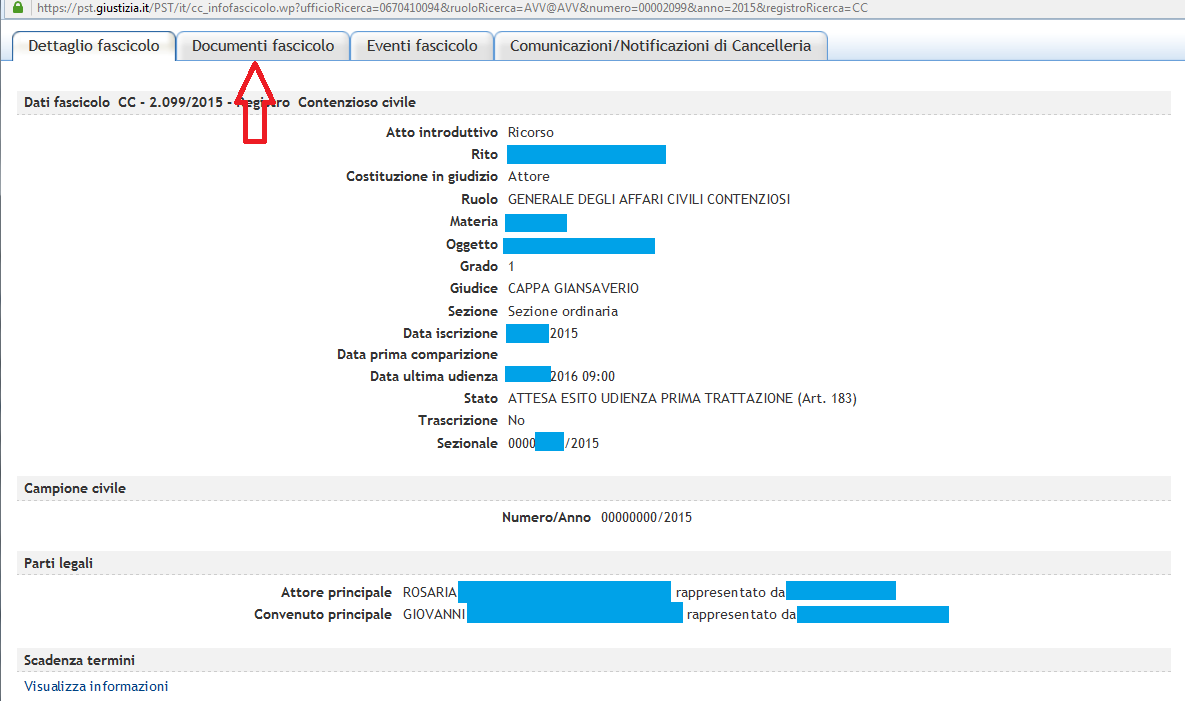
<h3 style="text-align: justify;"><span style="color: #000000;"><strong><span style="color: #ff0000;">12)</span> Si aprirà una nuova schermata; da qui clicchiamo su <span style="color: #0000ff;">"Documenti fascicolo"</span></strong></span></h3>
<img class="size-full wp-image-1966 aligncenter" src="http://maurizioreale.it/wp-content/uploads/2016/02/010.png" alt="010" width="1185" height="701" />
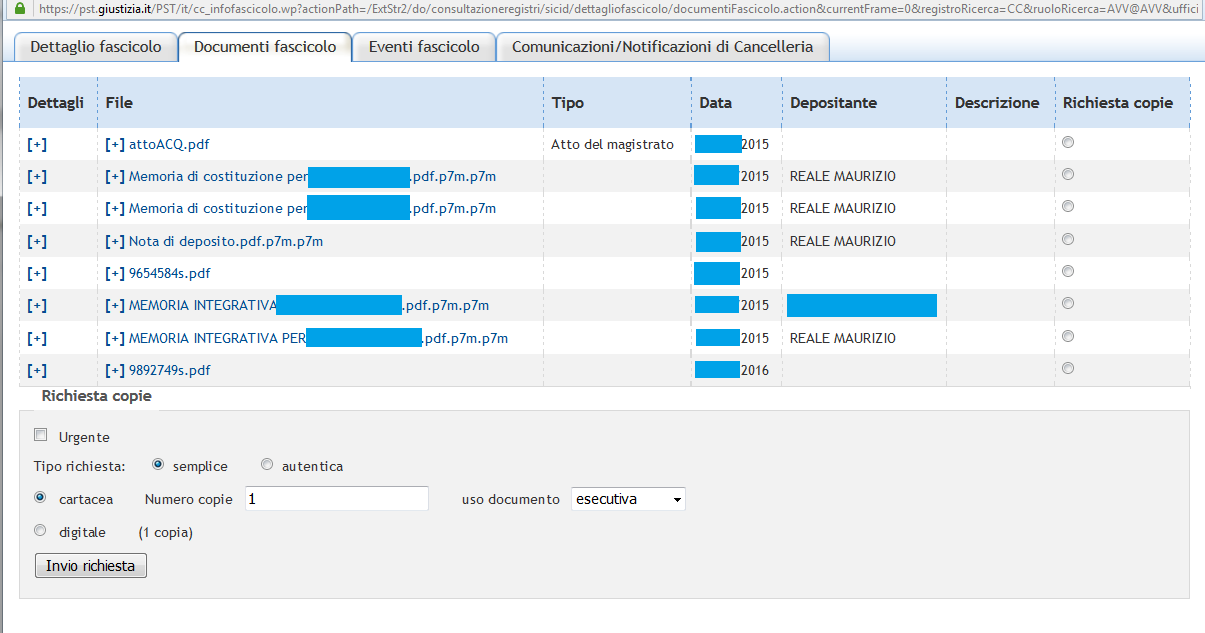
<h3 style="text-align: justify;"><span style="color: #000000;"><strong><span style="color: #ff0000;">13)</span> Comparirà quindi l'elenco degli atti e provvedimenti presenti nel fascicolo informatico</strong></span></h3>
<img class="size-full wp-image-1967 aligncenter" src="http://maurizioreale.it/wp-content/uploads/2016/02/011.png" alt="011" width="1205" height="633" />
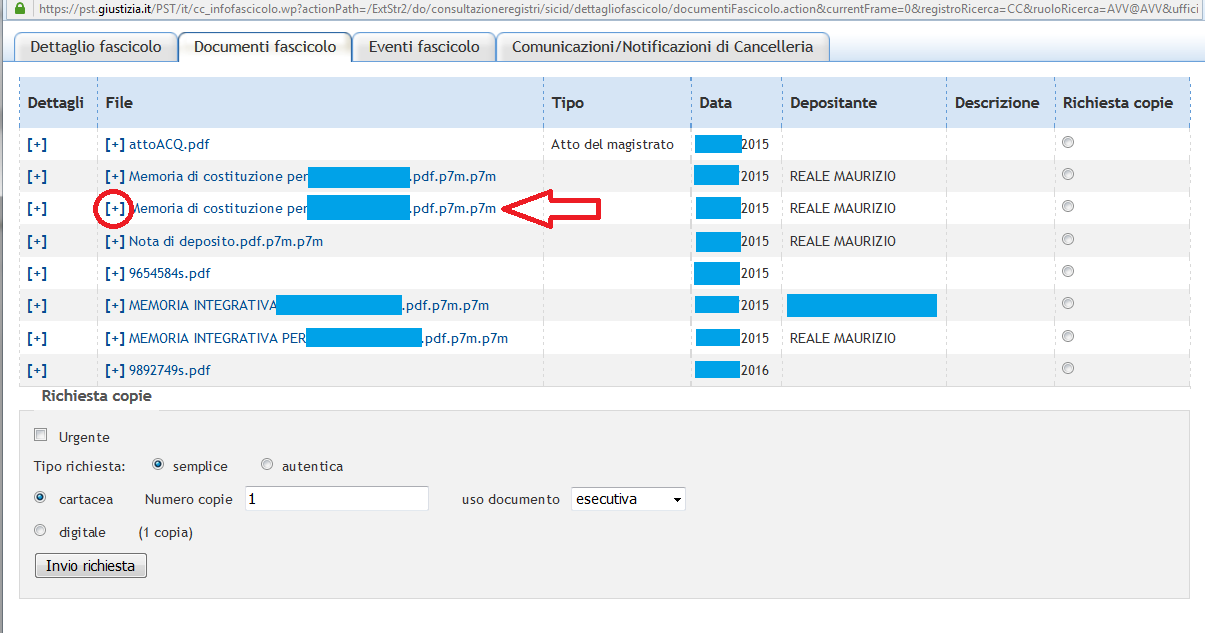
<h3 style="text-align: justify;"><span style="color: #000000;"><strong><span style="color: #ff0000;">14)</span> Immaginiamo di voler estrarre il duplicato informatico della <span style="color: #0000ff;">"memoria di costituzione"</span>; per farlo dobbiamo prima cliccare sul segno <span style="color: #0000ff;">"+"</span> posto accanto all'indicazione del relativo file</strong></span></h3>
<img class="size-full wp-image-1968 aligncenter" src="http://maurizioreale.it/wp-content/uploads/2016/02/012.png" alt="012" width="1205" height="633" />
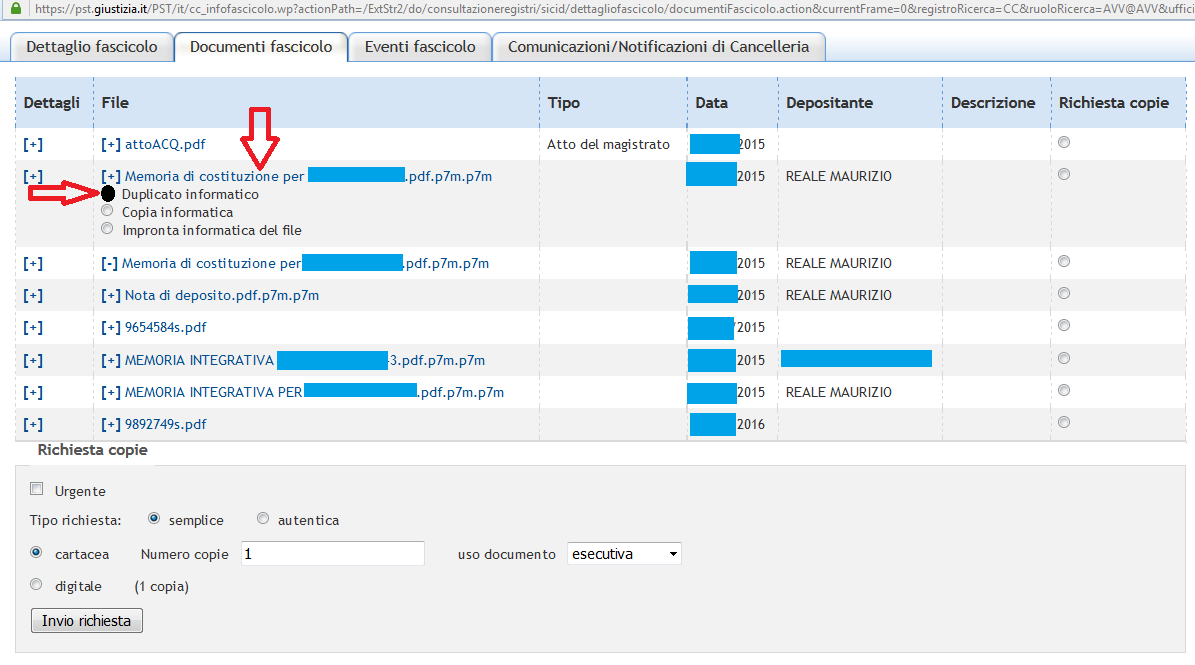
<h3 style="text-align: justify;"><span style="color: #000000;"><strong><span style="color: #ff0000;">15)</span> A questo punto si aprirà un piccolo menù: mettiamo il segno di spunta su <span style="color: #0000ff;">"Duplicato informatico"</span> e poi <span style="color: #0000ff;">clicchiamo sul nome del file</span> del quale vogliamo estrarre il duplicato informatico</strong></span></h3>
<img class="size-full wp-image-1969 aligncenter" src="http://maurizioreale.it/wp-content/uploads/2016/02/013.png" alt="013" width="1195" height="665" />
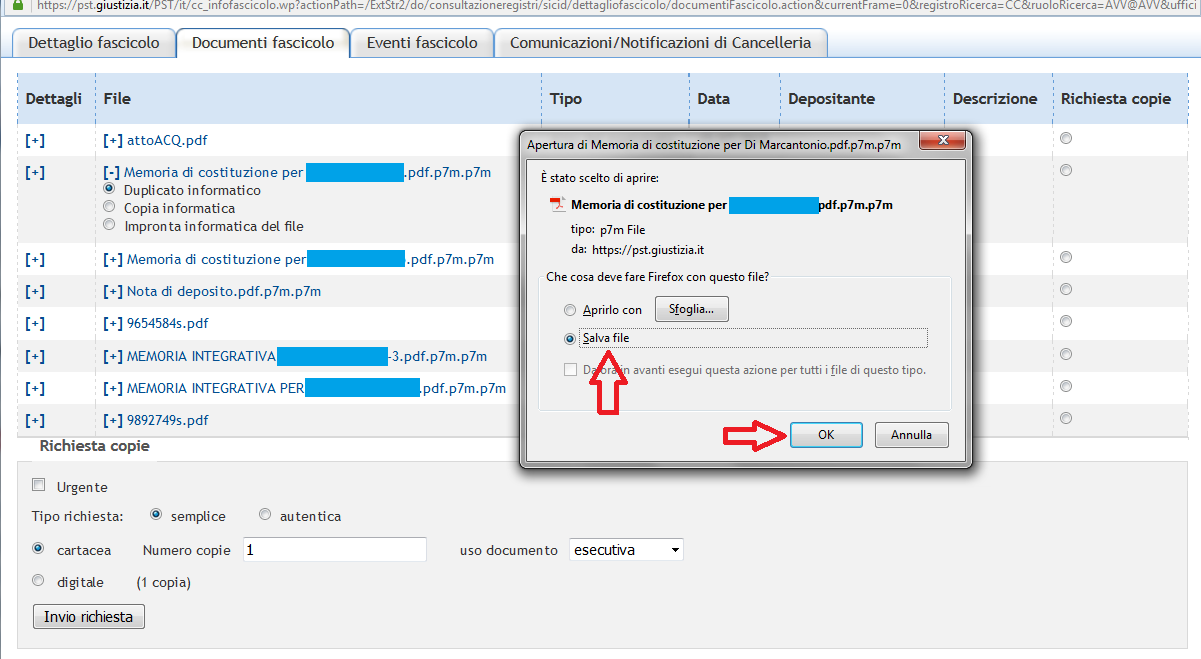
<h3 style="text-align: justify;"><span style="color: #000000;"><strong><span style="color: #ff0000;">16)</span> <span style="color: #000000;">Si aprirà una piccola schermata: clicchiamo su <span style="color: #0000ff;">"Salva file"</span> e poi su <span style="color: #0000ff;">"OK"</span></span> </strong></span></h3>
<img class="size-full wp-image-1970 aligncenter" src="http://maurizioreale.it/wp-content/uploads/2016/02/014.png" alt="014" width="1201" height="659" />
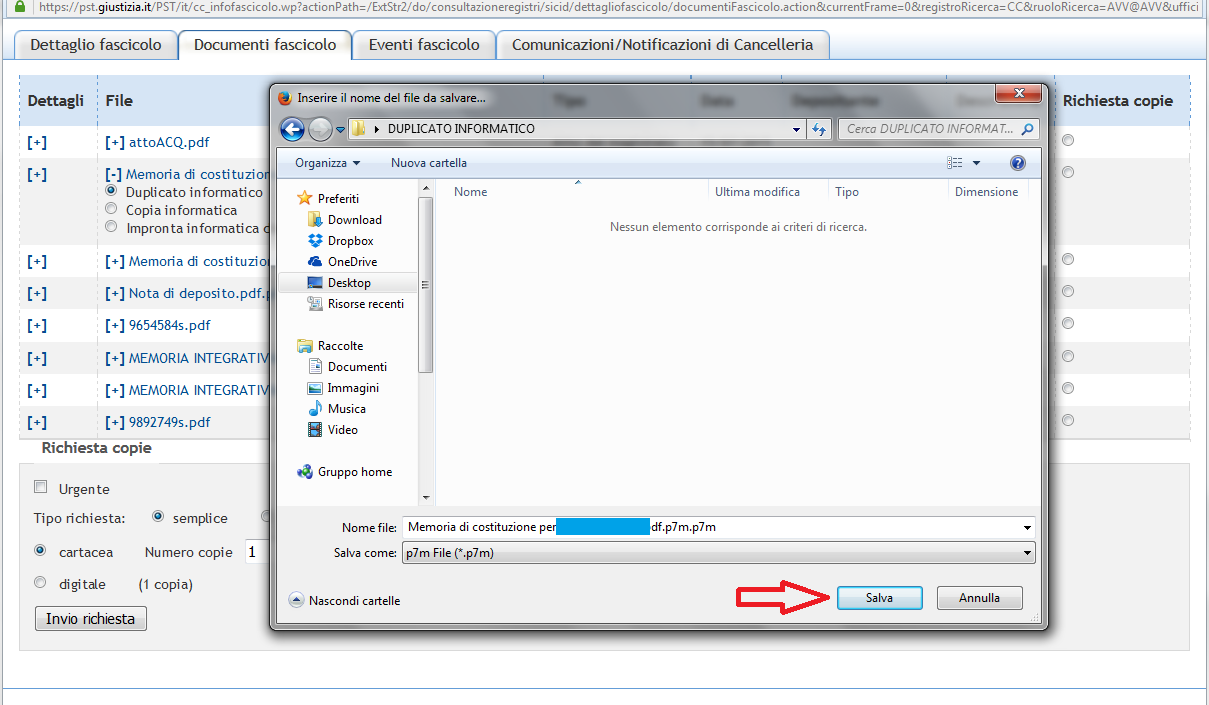
<h3 style="text-align: justify;"><span style="color: #000000;"><strong><span style="color: #ff0000;">17)</span> A questo punto dobbiamo selezionare la cartella (precedentemente creata) nella quale vogliamo salvare il duplicato informatico</strong></span></h3>
<img class="alignnone size-full wp-image-1971" src="http://maurizioreale.it/wp-content/uploads/2016/02/015.png" alt="015" width="1209" height="705" />
<h3></h3>
<h3><span style="color: #0000ff;"><strong>29 febbraio 2016</strong></span></h3>
<h3><span style="color: #0000ff;"><strong>Avv. Maurizio Reale</strong></span></h3>
&nbsp;

&nbsp;

&nbsp;

&nbsp;]]></content-encoded>
			<excerpt-encoded><![CDATA[]]></excerpt-encoded>
			<wp-post_id>1956</wp-post_id>
			<wp-post_date>2016-02-29 14:45:05</wp-post_date>
			<wp-post_date_gmt>2016-02-29 13:45:05</wp-post_date_gmt>
				</item>
</upm-export>